A floating teleprompter that works over any app
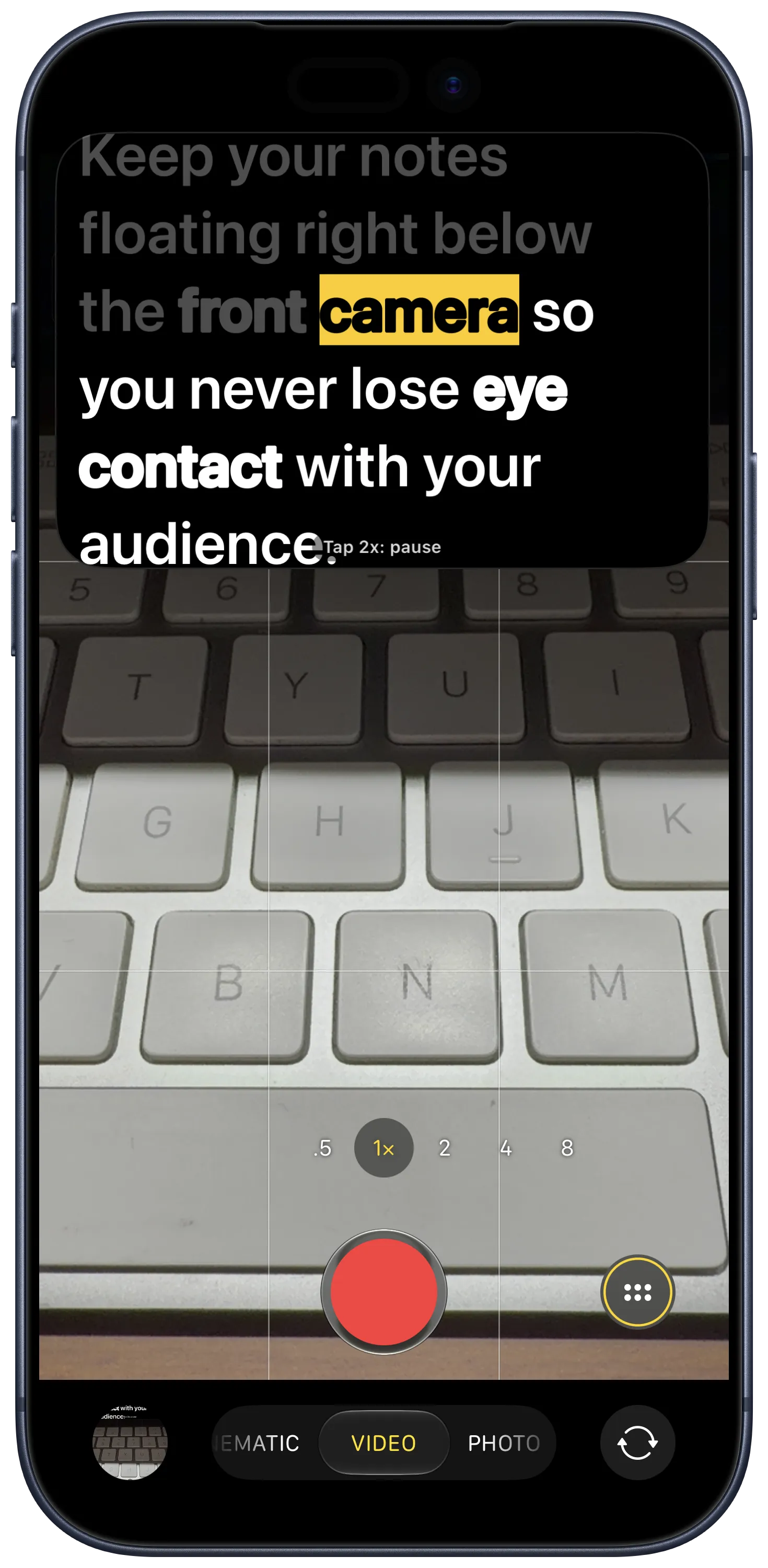
Cue Teleprompter puts your script in a small window that stays on top of the iPhone Camera app, TikTok, Instagram, and video calls, so you can read while you record.
- TikTok
- YouTube
- Any other app
Free to download · iPhone & iPad · No account
- Works on
- iPhone and iPad
- Requires
- iOS 16 or later
- Scrolling
- Constant or AI Voice
- Works with
- Any app
Float the script over any app
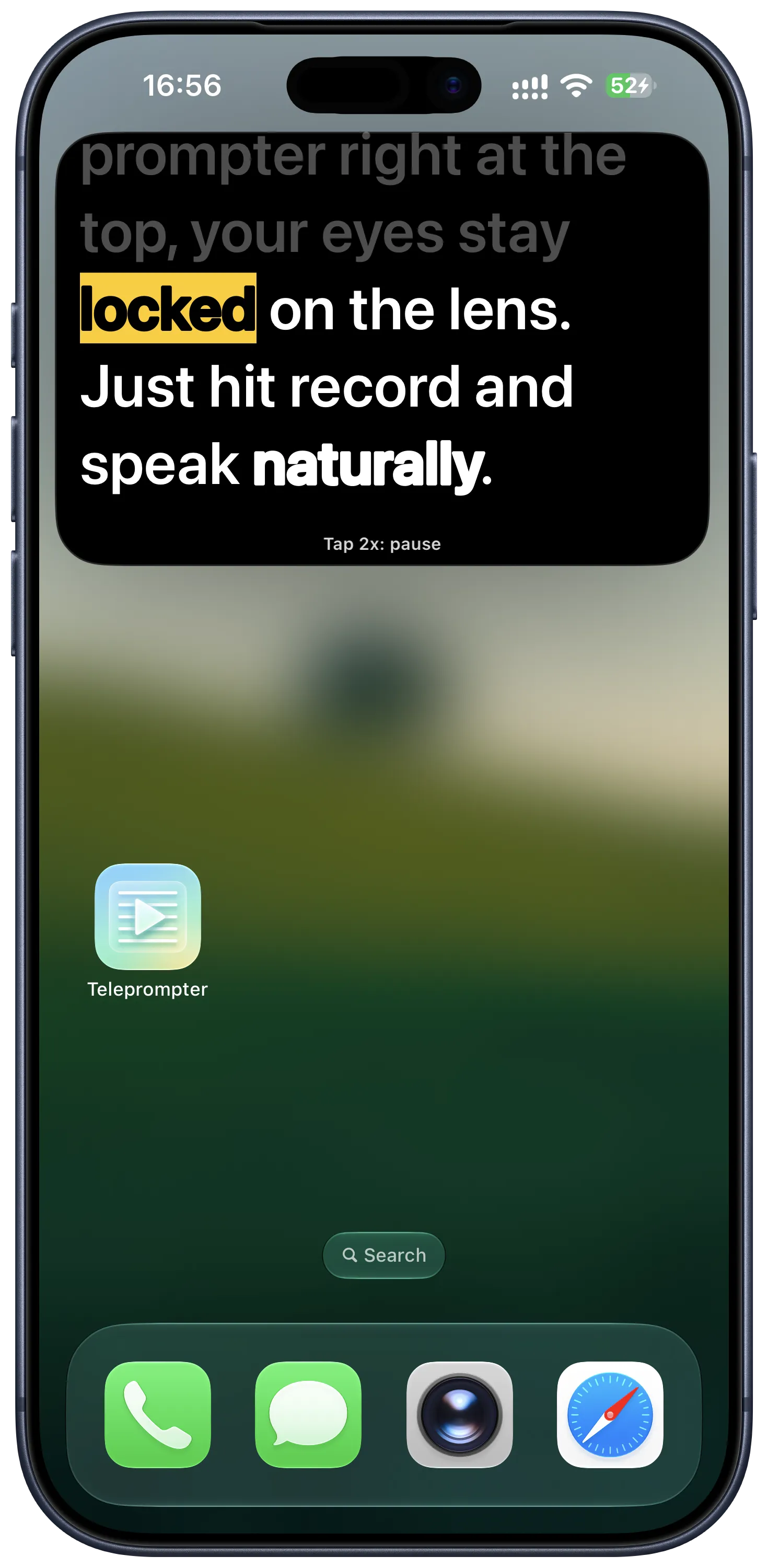
Tap Start Floating in Cue Teleprompter and your script moves into a small floating window. Go back to your Home Screen and open any app. The window stays on top and keeps scrolling.
You can drag the window to any corner of the screen to keep it close to the front camera. If it covers something you need to tap in the app underneath, slide the window to the edge of the screen to tuck it away, then pull it back out when you are ready to read.
Control playback and settings while recording
Before you launch the floating window, you can customize the font, text size, text color, alignment, loop scrolling, and a 3, 5, or 10-second countdown. If you film horizontally, you can rotate the scroll direction in 90-degree steps so the text matches how you hold your phone.
While the window is floating over the Camera app or a social app, you control playback with gestures. Double-tap the window or pinch it smaller to pause the script. Double-tap again or expand it to keep scrolling. A single tap takes you straight back to Cue to stop the session or edit your text.
| Action | What to do |
|---|---|
| Pause scrolling | Double-tap the window or pinch to shrink it |
| Resume scrolling | Double-tap again or pinch outward to enlarge it |
| Move the window | Drag it to any corner of the screen |
| Hide temporarily | Swipe the window off the left or right edge |
| Return to Cue | Single-tap the floating window |
Constant speed or AI Voice in the floating window
The floating window can scroll at a steady speed you set, or follow your voice with AI Voice and wait when you pause.
Choose Constant when you film with sound in another app, such as the Camera app, TikTok, or Instagram. Choose AI Voice when you read over slides, notes, or apps that are not recording sound. If you film your TikTok or Reel inside Cue instead, both modes work.
How to use the floating teleprompter on iPhone
-
Open the floating settings
Open a script in Cue Teleprompter and tap the Floating button at the bottom of the editor.
-
Adjust your layout and speed
Set your font size, text color, scroll speed, and countdown using the live preview at the top of the screen.
-
Start the floating window
Tap Start Floating. Your script moves into a floating window. Leave Cue and open the Camera app, TikTok, or any other app to start recording.
-
Stop when you finish
Single-tap the floating window to return to Cue, then tap Stop Floating.
What a floating teleprompter is good for
TikTok and Instagram cameras
Record directly inside social apps so you can use their built-in filters, effects, and audio tools while reading your script.
The native iPhone Camera app
Use Apple camera features like Cinematic mode or photographic styles while keeping your lines right below the lens.
Video calls and online classes
Keep your talking points or lecture notes near the top of the screen during Zoom, FaceTime, or Teams meetings.
Live streaming
Check your run of show or sponsor read while going live without looking away from the phone.
Tips for using the floating window
- Drag the floating window close to the front camera so your eyes stay aimed at the lens while you read.
- Choose Constant scrolling when you film with sound in another app.
- Rotate the Scroll Direction in 90-degree steps before you start if you plan to hold your phone sideways to shoot landscape video.
- Swipe the floating window off the side of the screen to hide it temporarily, then pull it back out when you need your script again.
- If you do not need another app's camera features, you can record directly inside Cue at up to 4K 60fps with the script overlaid on the camera preview.
Languages for AI Voice in the floating window
- English
- Spanish
- Portuguese
- French
- German
- Italian
- Chinese
- Japanese
- Korean
Available languages depend on your specific iPhone model and iOS version.
Frequently asked questions
Will the floating script appear in my recorded video?
No. Only you can see the floating window. It does not show up in videos you record with the Camera app, TikTok, or Instagram.
Can the floating window follow my voice?
Yes. Set Scrolling to AI Voice before you start and the window scrolls as you speak. When you film with sound in another app, Constant scrolling is the better choice.
How do I pause the script while it is floating?
Double-tap the floating window, or pinch it with two fingers to make it smaller. The window dims, pauses, and displays Paused. Double-tap again or pinch outward to make it larger and resume scrolling.
Can I change the speed or font size while the window is floating?
To change settings, single-tap the floating window to return to Cue, tap Stop Floating, adjust your settings with the preview, and tap Start Floating again.
Can I use the floating teleprompter in landscape orientation?
Yes. In the Floating Teleprompter settings, change the Scroll Direction option to rotate the text in 90-degree increments so the script reads upright when you hold your phone horizontally.
Does the floating teleprompter work on iPad?
Yes. The floating window works on both iPhone and iPad running iOS 16 or later.
More from Cue
Updated
All product names and logos are trademarks of their respective owners. Cue Teleprompter is not affiliated with or endorsed by them.